Jomaa Slim Rechargeable Bluetooth Keyboard and Mouse Set for Laptop Computer 2.4G USB Wireless Keyboard and Mouse Combo
Jomaa Slim Rechargeable Bluetooth Keyboard and Mouse Set for Laptop Computer 2.4G USB Wireless Keyboard and Mouse Combo
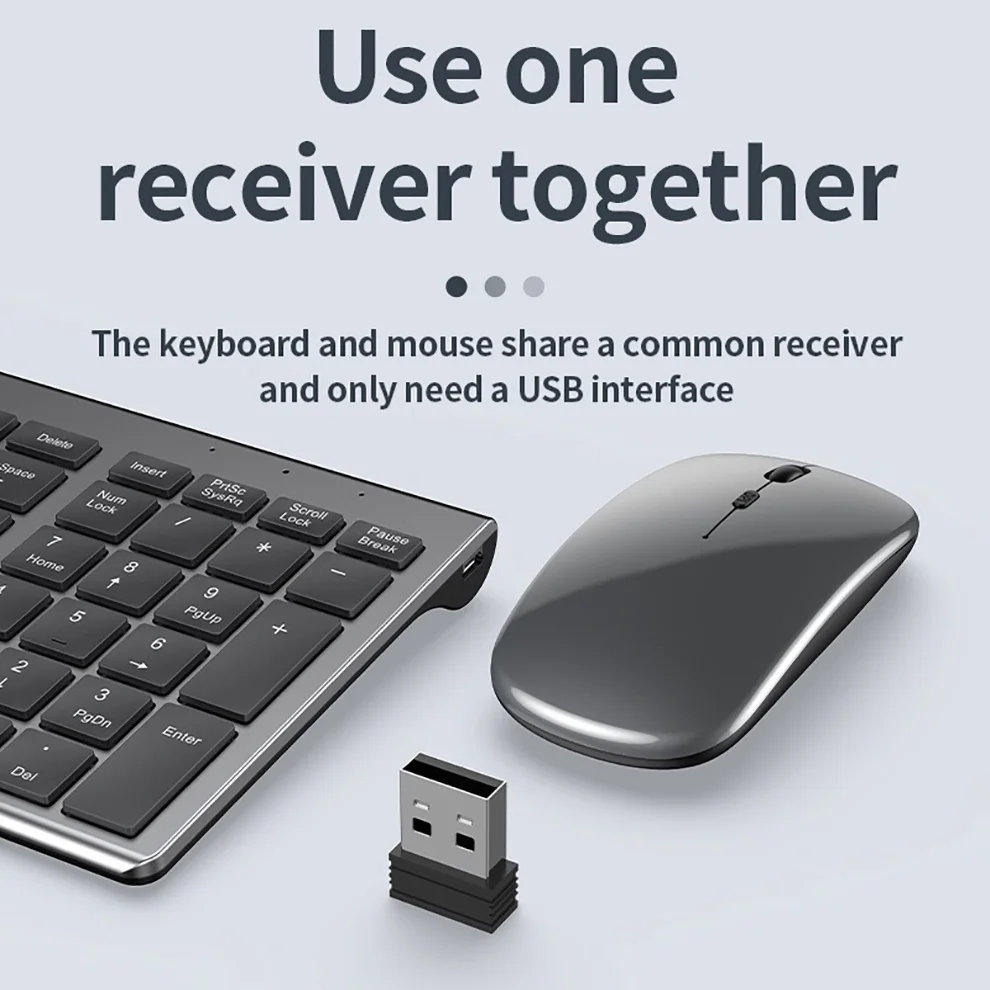
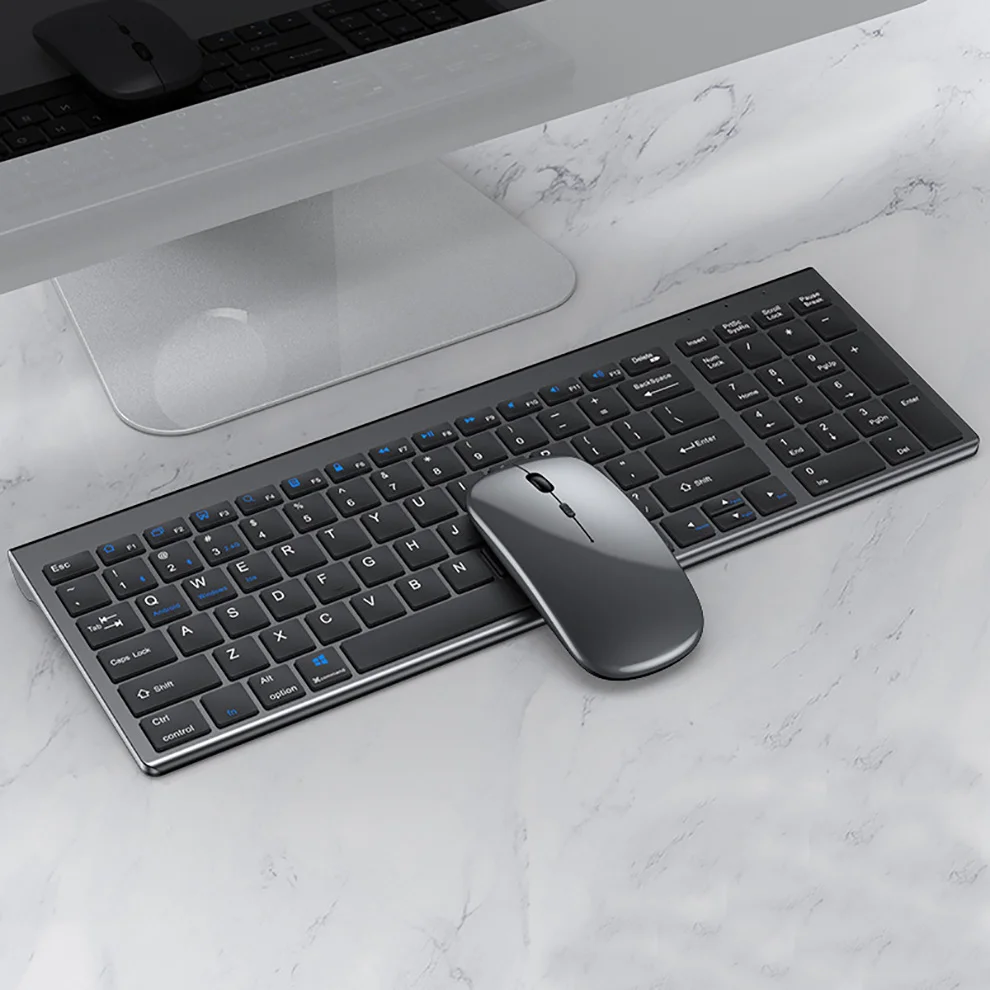
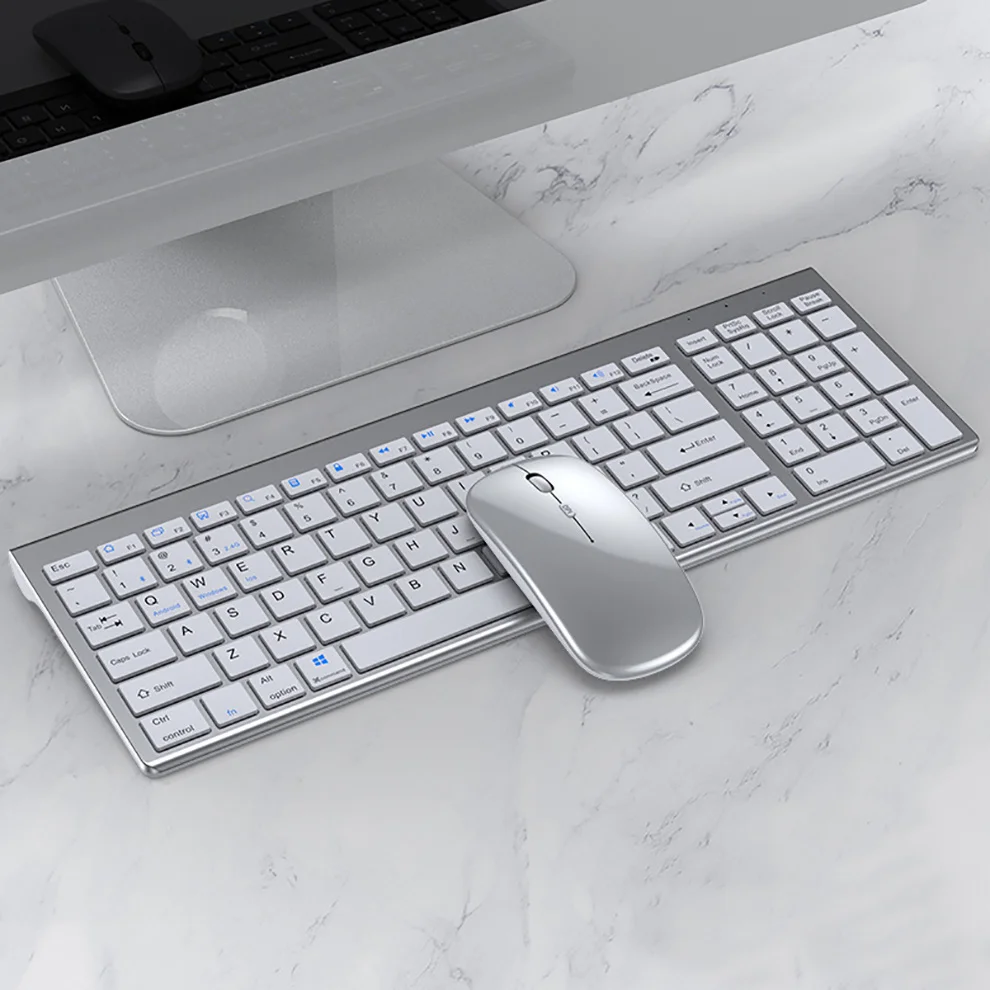
Upgrade your workspace with the Jomaa Slim Rechargeable Wireless Keyboard and Mouse Set, engineered for smooth performance, modern convenience, and everyday comfort. Designed for both professionals and gamers, this sleek combo features an ergonomic low‑profile keyboard that supports long typing sessions without strain, paired with a precision 1600 DPI optical mouse for accurate, fluid tracking.
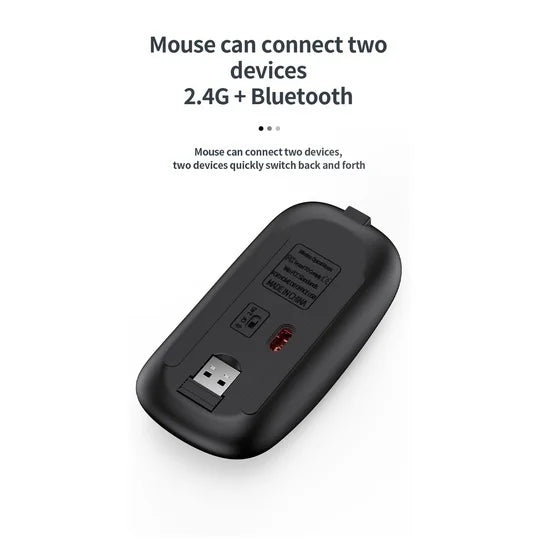
Enjoy flexible connectivity with dual‑mode support—Bluetooth and 2.4G USB—allowing you to switch between multiple devices effortlessly. With dedicated FN shortcuts and multimedia keys, you get instant access to volume, media controls, and fast device switching. The rechargeable battery system arrives pre‑charged, keeping you productive longer without constant battery replacements.
Certified to CE and RoHS standards, this lightweight, slim keyboard and mouse combo delivers reliable performance with a clean, modern aesthetic that elevates any desk setup.
🔧 Connection Instructions
USB 2.4G Wireless Mode
-
Turn the keyboard power switch ON.
-
Insert the USB receiver into your computer.
-
Press and hold FN + ~ to complete pairing.
Bluetooth Mode
-
Turn the keyboard power switch ON.
-
Enable Bluetooth on your device and enter search mode.
-
Press and hold FN + 1, FN + 2, or FN + 3.
-
Select “O50 keyboard BT” when it appears to connect.
🔄 Multi‑Device Switching
-
FN + 1 → Bluetooth Device 1
-
FN + 2 → Bluetooth Device 2
-
FN + 3 → Bluetooth Device 3
-
FN + ~ → USB 2.4G Wireless
-
Press FN + 1/2/3/~ alone to switch between paired devices
-
Hold FN + 1/2/3 for 3 seconds to enter pairing mode (flashing light)
📝 Additional Notes
-
For first‑time pairing, switch the keyboard to the correct system to ensure full key functionality.
-
Wireless range: 5–10 meters, depending on device environment.
🛠️ Troubleshooting
-
If the keyboard doesn’t appear in Bluetooth search, refresh your device’s Bluetooth scan.
-
If no indicator light appears, charge the keyboard.
-
When reconnecting to a previous device, delete the old pairing record before pairing again.
-
If pairing fails, remove the failed record and retry.





Product features
Product features
Materials and care
Materials and care
Merchandising tips
Merchandising tips